Internet Quality
If you set your Emby > Playback > Video > Internet Quality to Auto then Emby tries to check your internet quality prior to playing a file. It can be pretty hit or miss on getting this correct. The better method is to run a speedtest from your phone or computer connected to the same network as the device you're using Emby.
If your playback device is connected to your home network wirelessly then you should run the speedtest from your phone in the same room as the device to mimmic it's connectivity. As in take your phone and stand next to the tv in that room and run your speedtest.
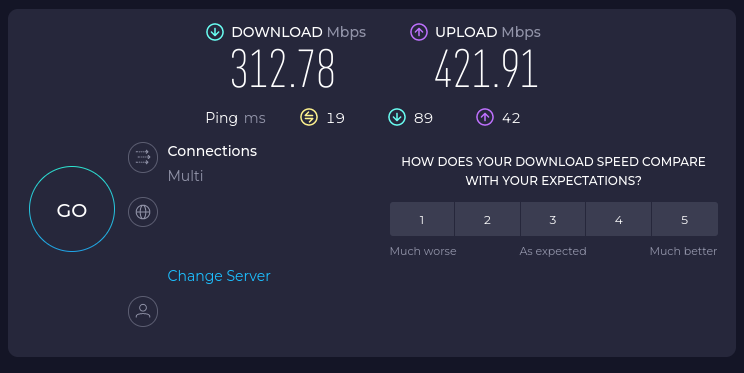
Visit Speedtest.net and run a test. You'll get a result similar to this:
Based on the download results of your speedtest you can then set your internet quality.
In the above example the download test was 312.78 Mbps so I would set my quality setting to that number minus 10 or 20Mbps or the closest number rounding down. Mine would be 1080p - 60 Mbps.
If your speedtest showed a download rate of 50Mbps you would subtract 20 Mbps and set your internet quality to 1080p - 30Mbps.
If you change your internet quality from Auto to a set value and experience buffering you can either change it back to Auto or you can reduce your quality setting by another 10Mbps.